
WITS Ulwazi Portal Login 2026 | ulwazi.wits.ac.za
This article contains information on how to gain access to the University of the Witwatersrand (WITS) Ulwazi Portal (ulwazi.wits.ac.za), also known as the E-Learning Management System (LMS), for the 2026 academic year.
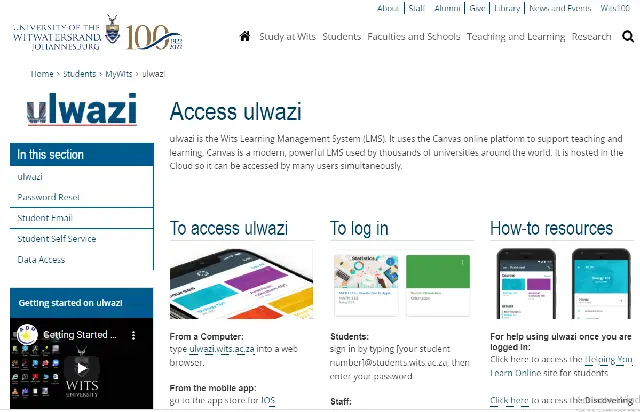
The University of the Witwatersrand (WITS) uses a Learning Management System (LMS) called Ulwazi to make it easy for students to attend classes online, access lecture notes, and submit assignments from anywhere and at any time.
Lecturers use Ulwazi to upload course materials including outlines, lecture notes, PowerPoint presentations, recommended reading lists, journals, videos, and discussion forums, so students can access them throughout the academic year.
Important for 2026: Access to Ulwazi is governed by a Microsoft 365 Single Sign-On (SSO) system. This means your Ulwazi login is directly linked to your Wits institutional Microsoft account. Before you can log in to Ulwazi, you must first activate your Wits Student Email account. Without this activation, your login will fail. New students must also complete formal university registration before the email account can be activated.
STEPS ON HOW TO ACCESS AND ENROL FOR THE WITS ULWAZI PORTAL SYSTEM
The following is the official guide on how to access the WITS Ulwazi system for the 2026 academic year.
Before you begin — complete these prerequisites first:
- Complete your university registration for the 2026 academic year at https://www.wits.ac.za/registration/new-first-year-students/. Registration must be completed before any university system can be accessed.
- Activate your Wits Student Email account. This is a mandatory step. Without it, you cannot log in to Ulwazi. Visit https://www.wits.ac.za/mywits/student-email/ and follow the activation instructions carefully.
Once your email is activated, follow these steps to log in:
- Open a modern web browser — Google Chrome, Mozilla Firefox, or Microsoft Edge are recommended. Do not use Internet Explorer, as it is no longer supported.
- Go directly to the official Ulwazi login page: https://ulwazi.wits.ac.za. Bookmark this page for future use.
- On the login page, enter your username. Your username is your full student number as issued by the university (for example, u12345678), followed by the correct Wits domain suffix. Refer to the official Wits guides at https://www.wits.ac.za/ulwazi/ to confirm the exact format required.
- Enter your password — this is the same password you set when activating your Wits student email or when first logging in to the Wits Microsoft 365 environment.
- After submitting your credentials, you will be automatically redirected to a secure Microsoft 365 sign-in page. This is normal and expected — it is part of the SSO process. Do not navigate away from this page.
- On the Microsoft sign-in page, confirm your Wits email address and password. You may also be prompted to complete a Multi-Factor Authentication (MFA) step, such as approving a notification on the Microsoft Authenticator app, entering a code sent by SMS, or answering a phone call. Complete whichever method is registered on your account.
- Once Microsoft has verified your identity, you will be redirected back to the Ulwazi dashboard, where you will see all your registered courses for the semester. Click on any course tile to access its content, materials, assignments, and discussion forums.
Forgotten your username or password?
- Do not attempt to guess your password or use unofficial methods. Instead, use the official password reset tool available through the Wits Students Portal. The reset process requires identity verification. Your Ulwazi password is the same as your Wits Microsoft 365 account password — resetting one resets the other.
ADDITIONAL INFORMATION
Students who have queries related to the academic programme should contact their respective schools or departments. Students who do not have access to adequate mobile computing devices and cannot secure them elsewhere should contact their Faculty representatives.
For technical issues with Ulwazi access, use the following official support channels:
- General IT and login issues: Contact the Wits Service Desk through the Wits Students Portal.
- Student email activation issues: https://www.wits.ac.za/mywits/student-email/
- Ulwazi login guide (official): https://www.wits.ac.za/teaching-and-learning/exploring-ulwazi/how-to-log-into-ulwazicanvas/
- Getting Started with Ulwazi (PDF guide): Download here
- Full Ulwazi Student Guide (PDF): Download here
- Module-specific or LMS feature issues: Contact the Teaching and Learning division through the Exploring Ulwazi page.
Common issues and quick fixes:
- “Account not found” or “Invalid credentials”: Your Wits Student Email has likely not been activated yet. Go to https://www.wits.ac.za/mywits/student-email/ and complete the activation.
- Stuck on the Microsoft sign-in page: Clear your browser cache and cookies, then try again. You can also try opening Ulwazi in an incognito or private browsing window.
- MFA code not received: Check that your registered MFA method (authenticator app or phone number) is correct and accessible. If you have lost access to your MFA device, contact the Wits Service Desk.
- Registered courses not showing on your dashboard: This is normal shortly after registration. Course shells may only become visible closer to the start of the semester. Wait a few days and check again. If a course is still missing well into the semester, contact your course convenor or faculty administrator.
Don’t miss out on current updates, kindly like us on Facebook & follow us on @EAfinder OR leave a comment below for further inquiries.
Share This Article
Know a WITS student who needs help accessing Ulwazi? Share this guide:





how do i get my student number and email address?