Rhodes University RUconnected 2026 | ruconnected.ru.ac.za
This article contains information on how to gain access to the Rhodes University RUconnected Portal (ruconnected.ru.ac.za), also known as the E-Learning Management System (LMS), for the 2026 academic year.
Rhodes University uses a centralized Learning Management System (LMS) called RUconnected to make it easy for students to attend classes online, access lecture notes, and submit assignments from anywhere. Lecturers upload course materials — including outlines, notes, presentations, reading lists, videos, and forums — directly onto the platform for students to use throughout the academic year.
The login system for 2026 is built on a Single Sign-On (SSO) architecture. This means one set of Rhodes University credentials gives you access to RUconnected, the administrative portal (ROSS), and the university’s electronic library resources. There are no separate login portals for first-year, returning, postgraduate, or international students — the process is the same for everyone.
STEPS ON HOW TO ACCESS AND ENROL FOR THE RU E-LEARNING MANAGEMENT SYSTEM
The following is the official guide for logging into the RU LMS for 2026.
- Open your web browser (Chrome, Firefox, Safari, or Edge are all supported).
- Go directly to the RUconnected login page: https://ruconnected.ru.ac.za/login/index2.php. Bookmark this page for future use.
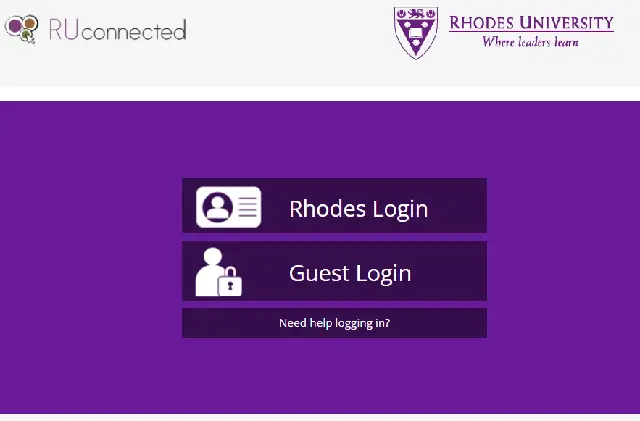
- On the login page, click the “Rhodes Login” button. Do not use any other login option.
- Your browser will be redirected to the central university authentication portal at https://login.ru.ac.za/. This is normal — it is part of the SSO process. The URL in your browser address bar will change. Do not navigate away.
- Enter your username and password exactly as provided by Rhodes University. Your username is typically your student number (e.g., g26a1234). Credentials are case-sensitive, so check that Caps Lock is off before typing.
- If your credentials are correct, you will be automatically redirected back to RUconnected, now logged in. You will see your enrolled modules and can access course materials, assignments, and discussion forums.
- For administrative tasks such as subject selection or viewing fees, go to the ROSS portal at https://ross.ru.ac.za/. Due to the SSO system, you may already be authenticated and will not need to log in again.
STUDENTS
- All registered students — first-year, returning, postgraduate, and international — use the same login process described above. There are no separate portals or different credentials for different student types.
- Username formatting matters. The correct format depends on what you are trying to access:
- University Email: g26a1234@campus.ru.ac.za
- Campus Wi-Fi (eduroam): g26a1234@wf.ru.ac.za
- RUconnected and ROSS (via SSO): g26a1234 (base student number only)
Using the wrong format is one of the most common causes of login failure. Always check the official university guides if you are unsure.
- To reset your password, contact the Information and Technology Services (I&TS) department through their official FAQ page. Identity verification will be required. Do not attempt to use unofficial methods to recover your account. The I&TS department is the only official authority for password resets, network access, and account issues.
- First-year students must activate their accounts after registration before logging in for the first time. Refer to the 2026 First-Time Entry Student FAQs provided during orientation for the specific activation steps.
ADDITIONAL INFORMATION
Students who have queries related to the academic programme should contact their respective schools or departments directly. Students experiencing device or data access difficulties should contact their Faculty representatives for guidance on available support options.
For technical problems that cannot be resolved through self-troubleshooting, use the following official support channels:
- General IT, login, network, and account issues: Contact Information and Technology Services (I&TS) via their official website or at itechsupport@ru.ac.za. When reaching out, include your full name, student number, a description of the problem, and any screenshots if possible.
- RUconnected module or LMS-specific issues: Contact the Educational Technologies (EdTech) team through the Teaching and Learning section of the Rhodes University website.
- Registration, fees, or subject selection: Use the ROSS portal at https://ross.ru.ac.za/ or contact the Registrar’s Office.
Common issues and how to fix them:
- Not being redirected to login.ru.ac.za: Check if your browser is blocking pop-ups. Try clearing your browser cache and cookies.
- Login failing repeatedly: Double-check your username format and ensure Caps Lock is off. If the problem continues, contact I&TS — your account may be locked.
- Cannot see your modules after logging in: Confirm your registration is complete through ROSS. Module access is linked to your official enrolment status.
Don’t miss out on current updates, kindly like us on Facebook & follow us on @EAfinder OR leave a comment below for further inquiries.
Share This Article
Know a fellow Rhodes University student who needs help logging in? Share this guide: